How to Connect Your Bank Account to an Expense Tracker (Without Your Bank Login)
November 11, 2026
Connect your bank account to an expense tracker with no bank login: forward the emails your bank already sends. Steps for Gmail, Outlook and iCloud Mail.
Can you connect your bank account to an expense tracker without giving it your bank login? Yes. Your bank will email you every time you pay if you ask it to, and it issues a statement every month. Forward those emails to the app, and your spending shows up there while your login stays with you.
Yavo works this way. Every account has a private import address, such as k7f3q9x2@in.yavo-app.com. What arrives there becomes draft expenses in your budget, each with a category.
Your bank
Card alert
You paid 18.40 € at Alder Market
From Northwind Bank
emails you
Your mail app
Fwd: You paid 18.40 € at Alder Market
To k7f3q9x2@
in.yavo-app.com forwards it
Your Yavo address
k7f3q9x2@
in.yavo-app.com Yavo reads it
Your budget
Alder Market- 18.40 €GroceriesDraft
Two ways to connect your bank account to an expense tracker
One way is bank sync: a connection service gets access to your account and pulls the transactions. The other is forwarding your bank's emails. You get the same transactions, and nobody but you and your bank touches the account.
| Bank sync | Email forwarding | |
|---|---|---|
| Who gets into your account | A connection service, with your consent | Nobody |
| How long it lasts | 180 days at most in the EU, then you log in at your bank again | Until you delete the rule |
| Which banks | The ones the service supports | Any bank that emails you or lets you download a statement |
The 180 days come from an EU rule: a bank may skip strong customer authentication on such a connection for 180 days at most, and then you log in at the bank again (Commission Delegated Regulation (EU) 2022/2360, Article 1). A forwarding rule has no expiry date.
Forwarding is not live sync, though. An alert reaches Yavo soon after your bank sends it, and a statement arrives when you send it.
Step 1: Get the app
Yavo is on iPhone and Android. Install it first, then follow the setup below.

Step 2: Forward your bank's emails
First make sure your bank emails you: in your bank's app or online banking, turn on purchase alerts and choose email. Then pick your mail app below and set the rule once: it forwards only the mail from your bank and leaves the rest of your inbox alone.
Gmail
Gmail has these settings on the web only, not in its phone app. Use a computer, or open mail.google.com in your phone's browser and switch to the desktop site.
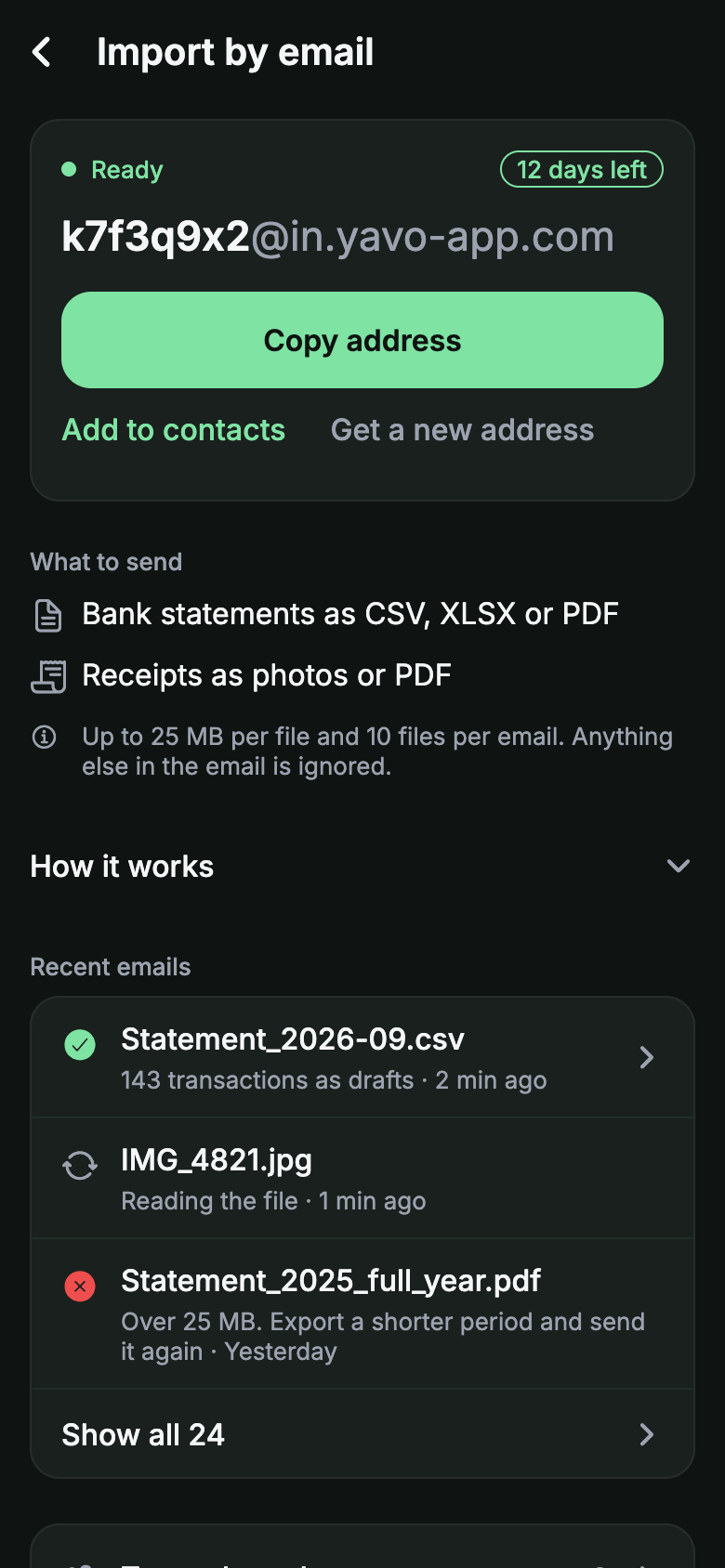
In Yavo, open Settings, then Import by email. Tap Copy address.
In Gmail, open Settings, See all settings, Forwarding and POP/IMAP. Click Add a forwarding address and paste it.
Gmail asks that address to confirm. Yavo emails the code and a Confirm in Gmail button to the email address of your Yavo account, which can be a different mailbox from this Gmail. Open that mailbox and tap the button, or type the code in Gmail's forwarding settings.
Leave forwarding of all mail off. In the search box, click Show search options, enter your bank's sender address, click Create filter and tick Forward it.
The first bank email waits in Yavo. Tap Always accept, and Yavo stops asking about that sender.
Outlook
Outlook.com, the new Outlook or Outlook on the web.
In Yavo, open Settings, then Import by email. Tap Copy address.
In Outlook, open Settings, Mail, Rules. Click Add rule.
Add a condition for your bank's sender address, then the action Redirect to with your Yavo address. Save.
The first bank email waits in Yavo. Tap Always accept, and Yavo stops asking about that sender.
iCloud Mail
In a browser, at icloud.com/mail.
In Yavo, open Settings, then Import by email. Tap Copy address.
At icloud.com/mail, select the button at the top of the Mailboxes list, then Settings, then Rules.
Add a rule: if a message is from your bank's address, forward it to your Yavo address. Select Add.
The first bank email waits in Yavo. Tap Always accept, and Yavo stops asking about that sender.
To try it before you set a rule, open one bank email on your phone, tap Forward and send it to your Yavo address. Statements go the same way: download the CSV, XLSX or PDF from your online banking and email it as an attachment. The forward receipts by email page has the full steps for all three mail apps.
Step 3: Check what arrived
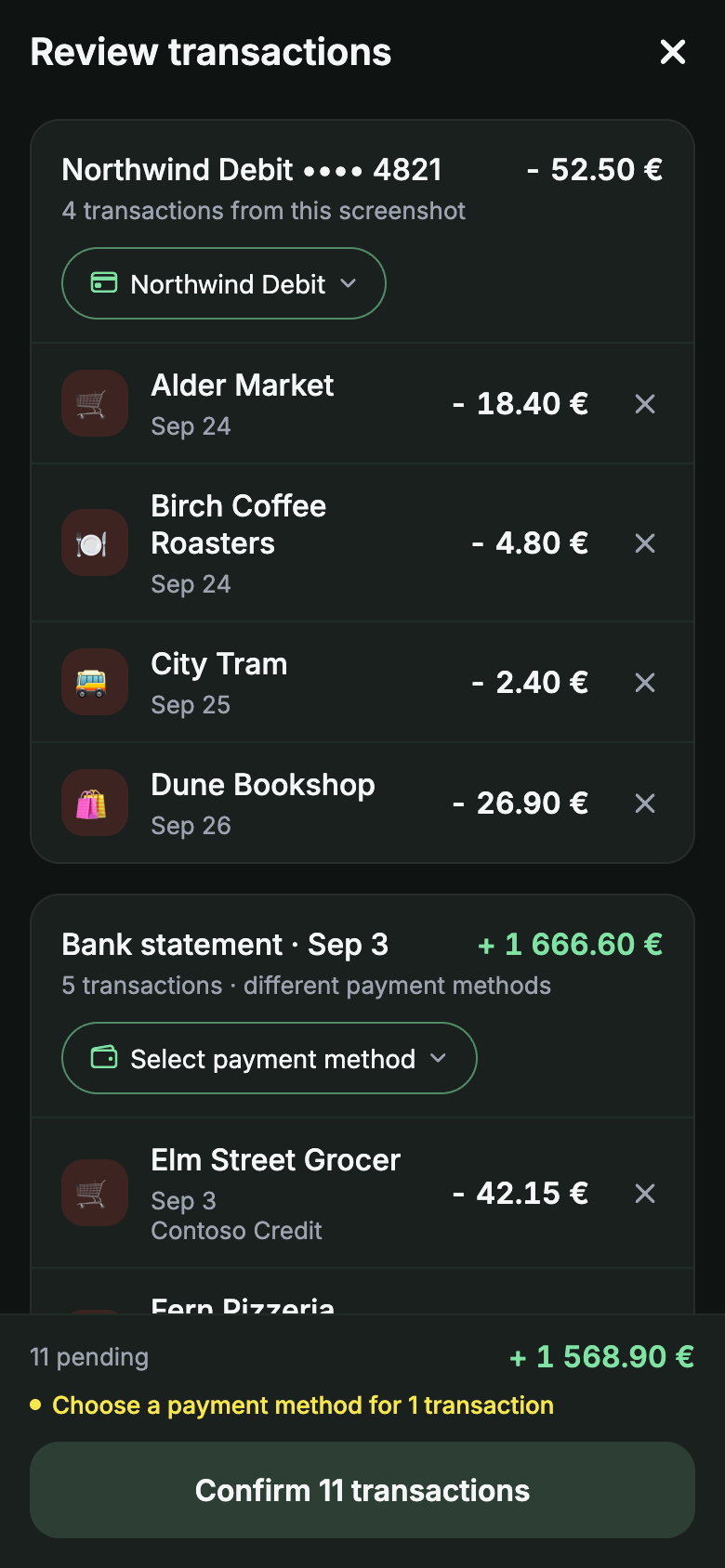
Each payment arrives as a draft with the merchant, the amount, the date and a suggested category. Confirm the drafts and they count against your budget.
If you already log payments with Apple Pay, receipt photos or voice, a statement will list them again. Yavo recognises a payment it already has and does not add it twice. When it is not sure, it asks, and you settle it with one tap.
The first two files you email are free. After that, the import address is part of the Yavo subscription. What Yavo receives and keeps is on the privacy page.
Questions
Can expense management apps integrate with my bank accounts?
Yes, in two ways. With bank sync, a connection service gets access to your account. With email, you forward the alerts and statements your bank sends you and the app reads those. Yavo works the second way and never asks for a bank login.
Is it safe to forward bank emails to an app?
Yavo receives only what is sent to your import address and nothing else from your mailbox. The first email from a new sender waits for your OK in the app. You can replace the address at any time, and the old one stops working at once.
Which banks does it work with?
Any bank or card that emails you an alert when you pay, or lets you download a statement as CSV, Excel or PDF. If a PDF is a scan or has a password, export CSV or XLSX instead.
What does it cost?
The first two emailed files are free. After that, the import address is part of the Yavo subscription.
Nothing to type. Nothing to connect.
Statements and receipts by email, receipt photos, voice, and Apple Pay taps on iPhone, all counting against a budget you can actually keep.
Free to start. Premium removes the limits. Cancel anytime.