A budget that keeps itself.

Most budgets die of typing. Yavo logs your spending by itself: Apple Pay taps in stores, statements by email, receipts and voice. No bank login, ever.

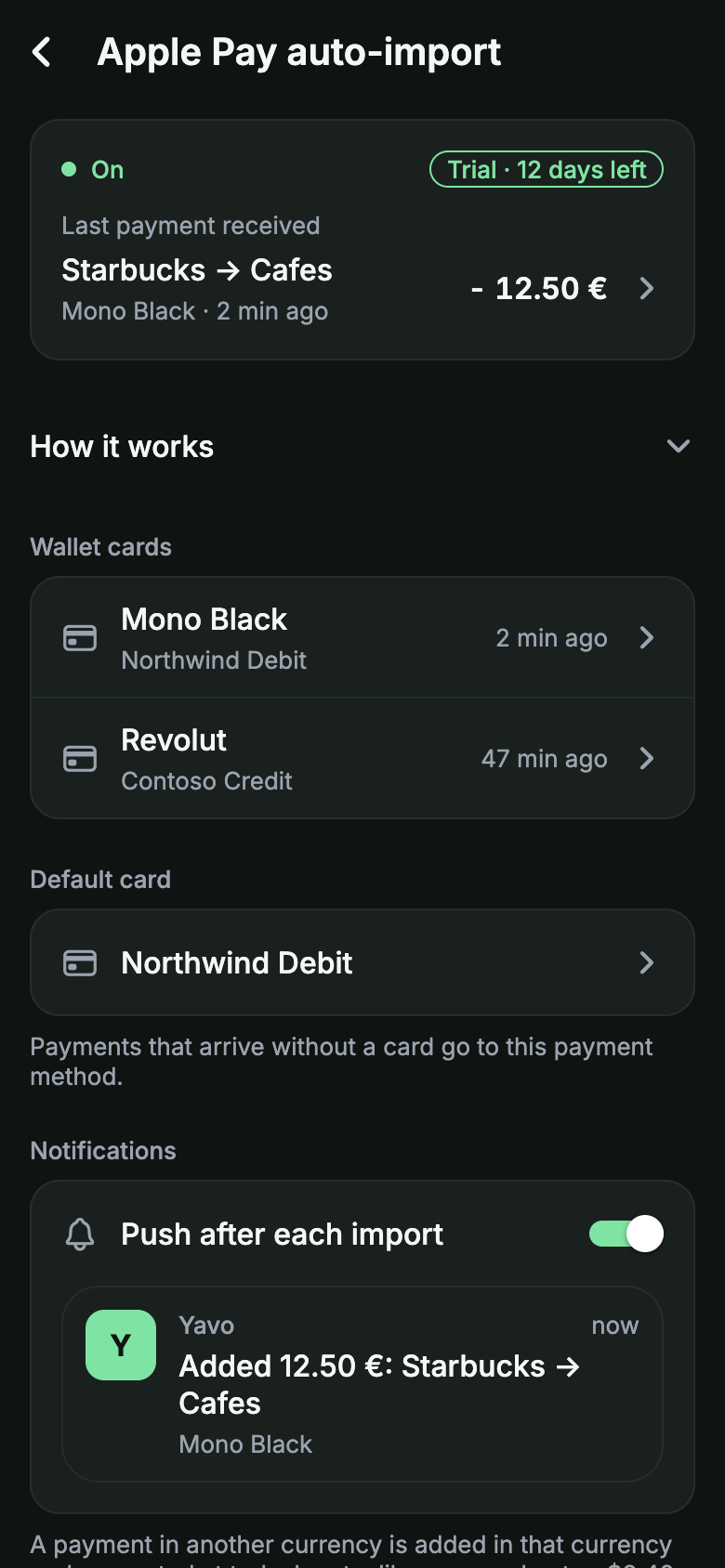
Yavo Apple Pay auto-import screen, switched on, showing the last payment received
Made by a small independent teamCancel anytime

Nothing to type. It comes in on its own.

Apple Pay in stores

Tap to pay like always, and the purchase logs itself. One-time setup in the Shortcuts app.

Blue Bottle Coffee

Coffee

-$4.80

iPhone

Apple Pay

Just now

Statements by email

Online orders and your other cards come in this way: email a CSV, XLSX or PDF statement to your Yavo address.

Trader Joe's

Groceries

-$62.14

iPhone and Android

Statement

Yesterday

Receipt photos

Cash or card, a photo of the receipt is enough. Yavo reads the merchant, the date and the total.

Nopa

Dinner

-$86.00

iPhone and Android

Receipt

Tue

Voice

Say what you spent while you still remember. Yavo logs it with a category.

Walgreens

Pharmacy

-$12.49

iPhone and Android

Voice

Mon

Tap at the checkout. Seconds later it is in your budget.

Small taps are the purchases nobody writes down. Set up Shortcuts once, and every in-store Apple Pay payment logs itself.

You pay with Apple Pay

A coffee, groceries, the pharmacy. You hold your iPhone to the terminal like always.

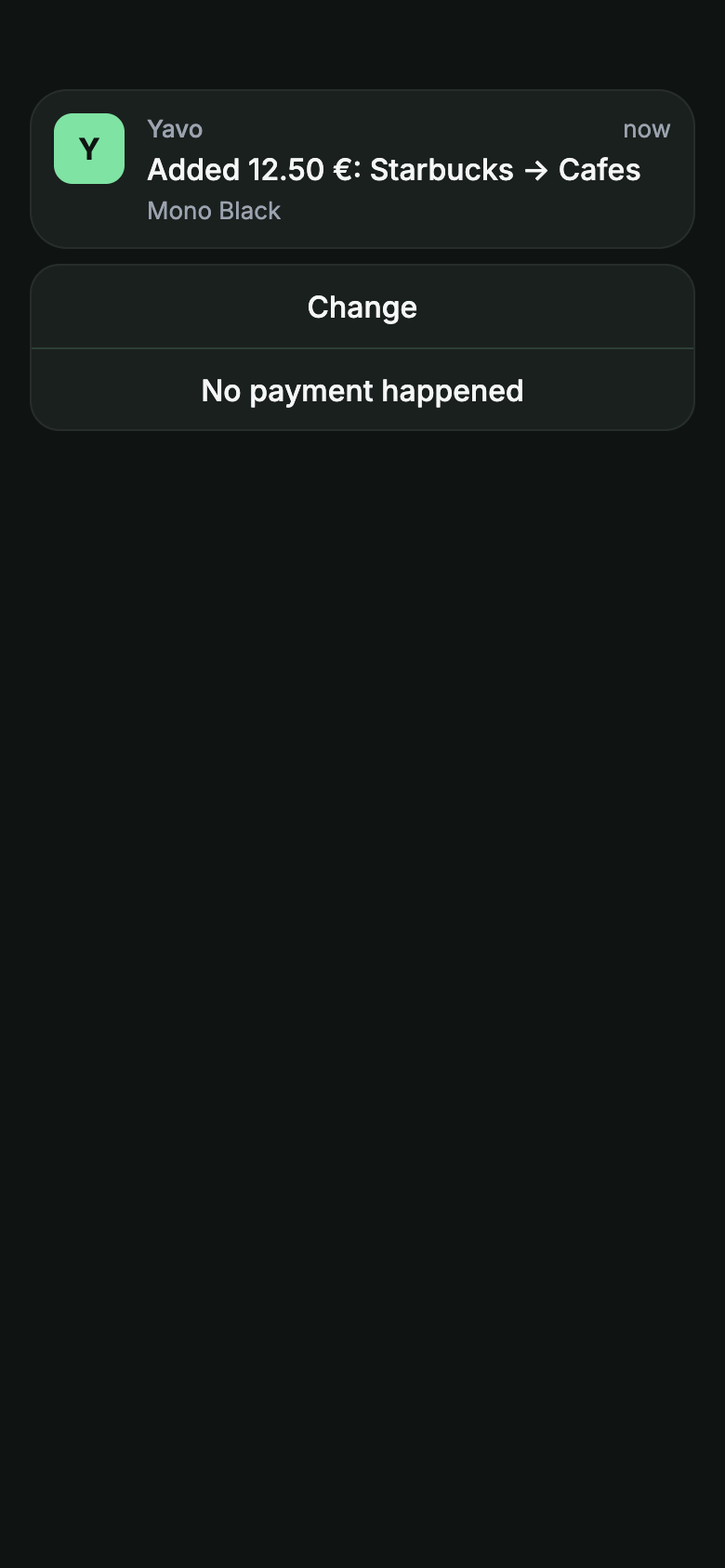
Yavo notification: added 12.50 euro at Starbucks, Cafes

The shortcut runs by itself

iOS notices the payment and runs the Yavo shortcut in the background. Nothing to open, nothing to confirm.

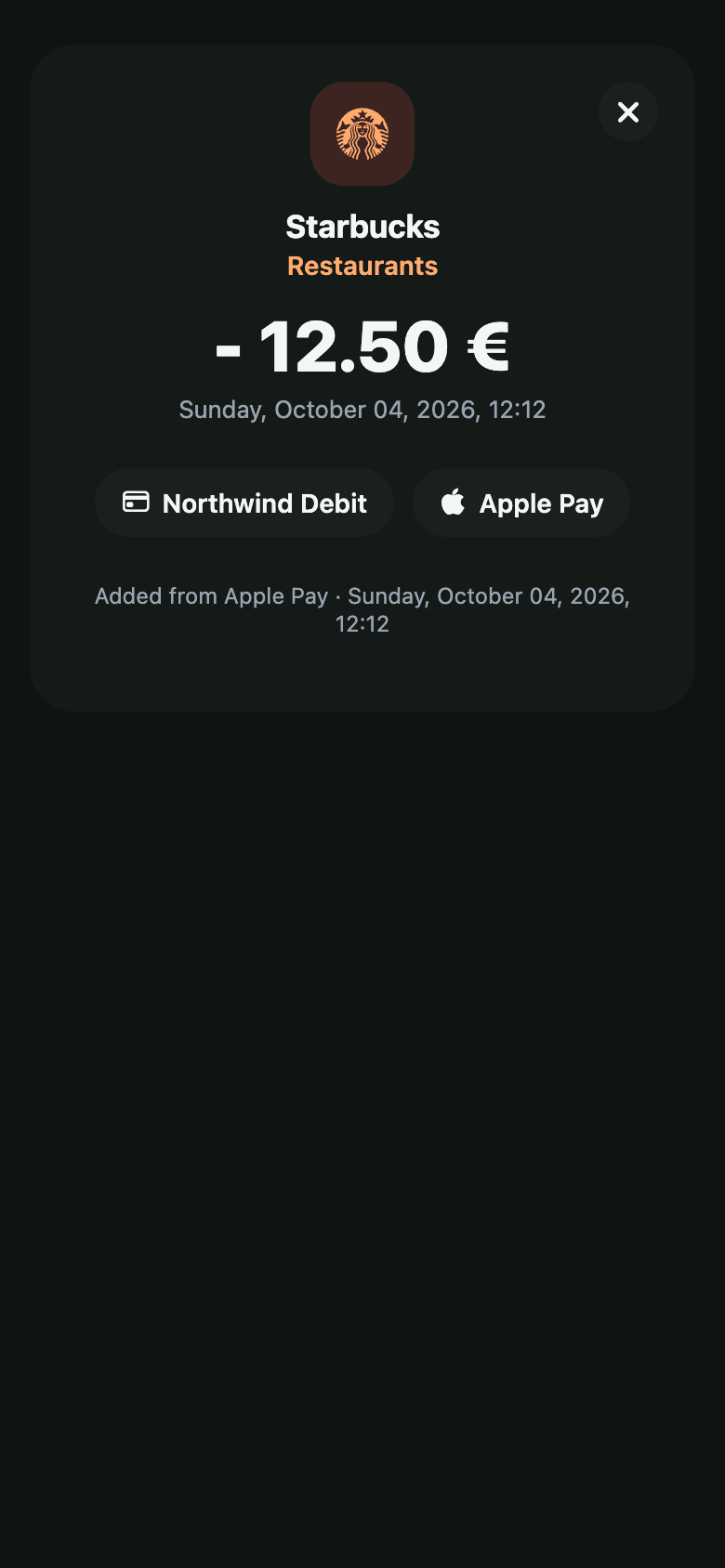
Yavo expense detail screen for a payment imported from Apple Pay, with its category

It appears in Yavo, with a category

The merchant and the amount land in your feed and count against your category limit for the month.

Works for Apple Pay taps in stores on iPhone with iOS 17 or later. Online purchases and other cards come in through statements by email.

How the Apple Pay setup works

Online orders come in too. No spreadsheet.

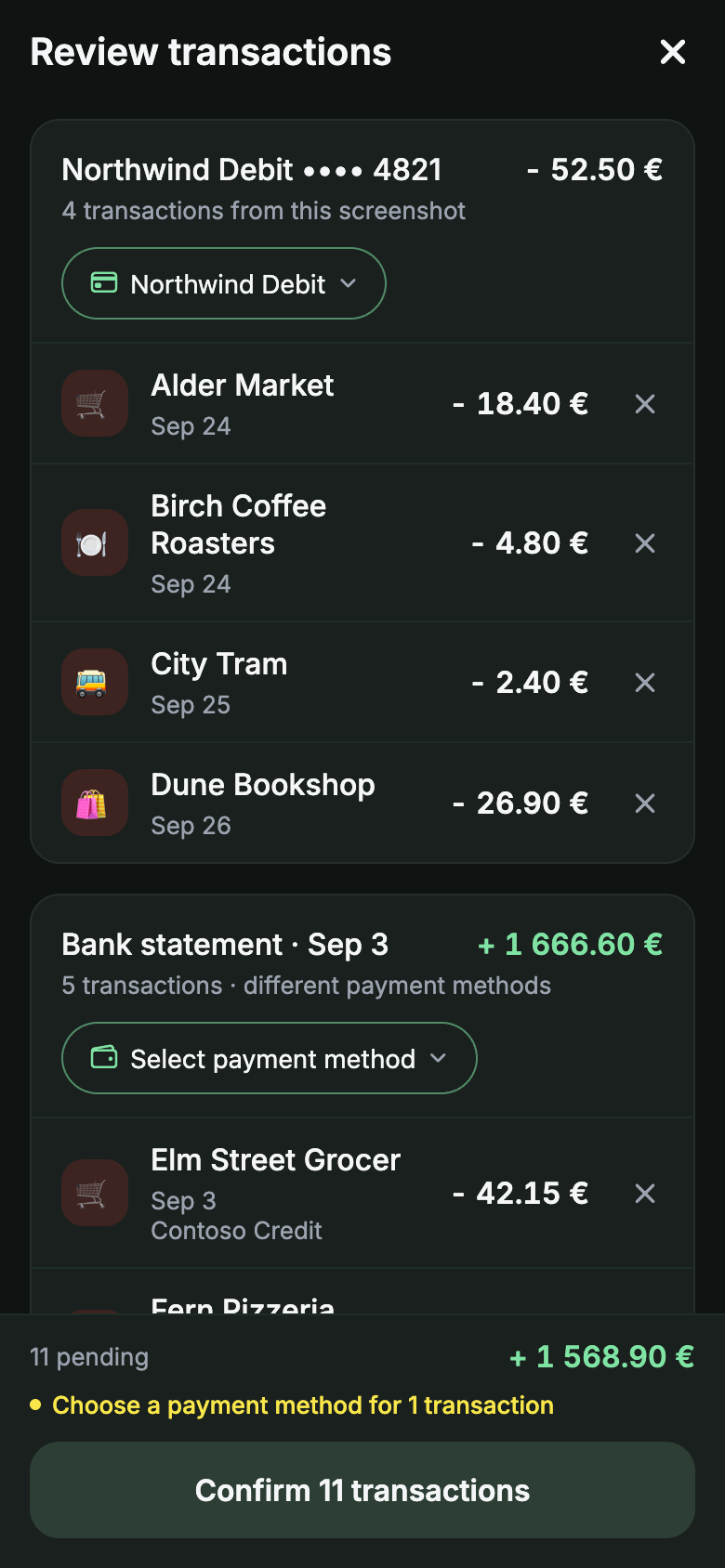
Not everything is a tap at the checkout. Download a statement from your bank app and email it to your personal Yavo import address. That is how online orders and your other cards come in, still with no bank login.

  • CSV, XLSX and PDF statements
  • Transactions arrive categorized and count against your limits
  • Works on iPhone and Android
Which statements work
Yavo review screen for 11 transactions imported from a bank statement

Then you know where you stand.

Budgets and limits

Always know what is left to spend.

A monthly budget with a limit per category, suggested from how you actually spend. Everything that comes in counts against it by itself.

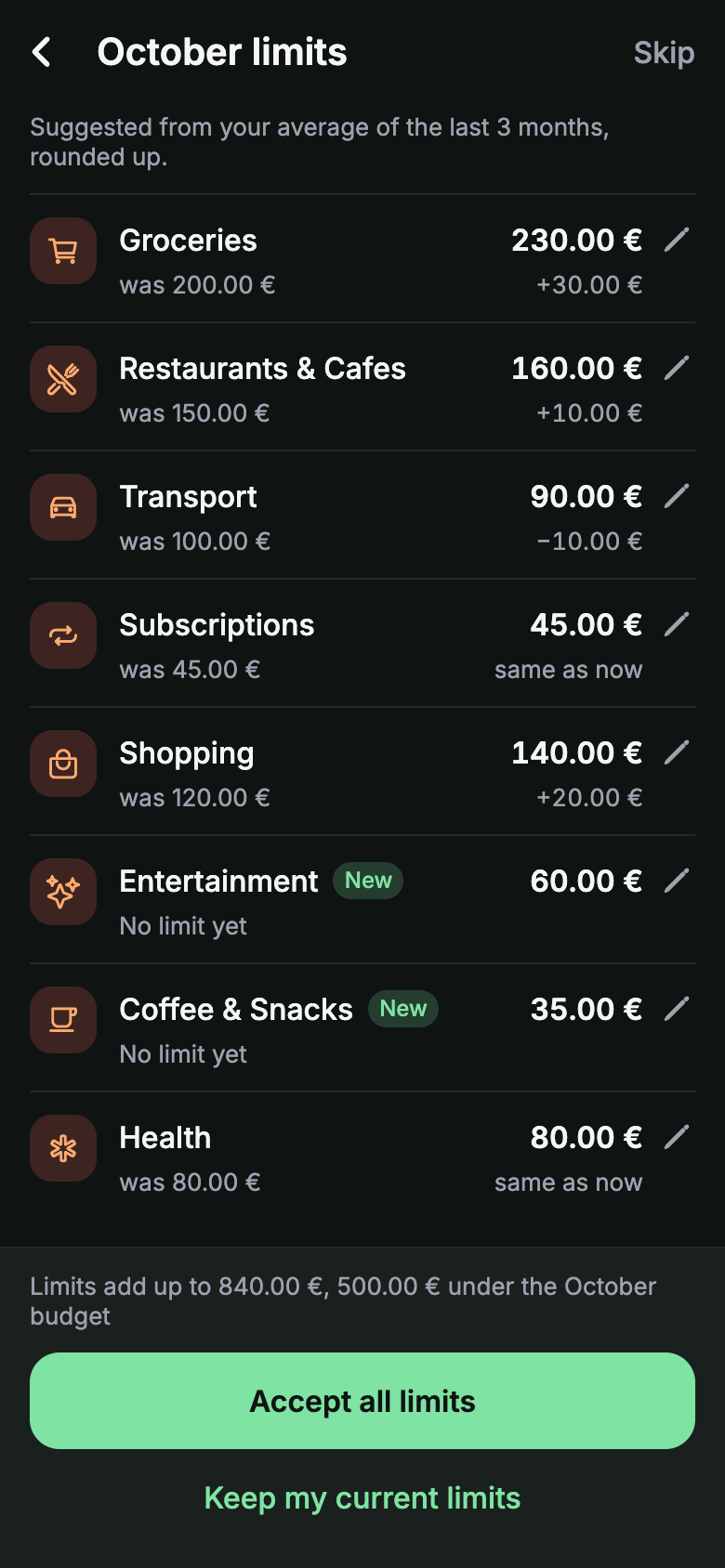
  1. 1Pick a monthly budget, then a limit per category, or take the ones Yavo suggests from your last three months.
  2. 2Apple Pay taps, statements, receipts and voice entries land in the right category and update what is left.
  3. 3At the end of the month you see what stayed under its limit and what went over.
Budgets in detail
Yavo screen with suggested spending limits per category for October

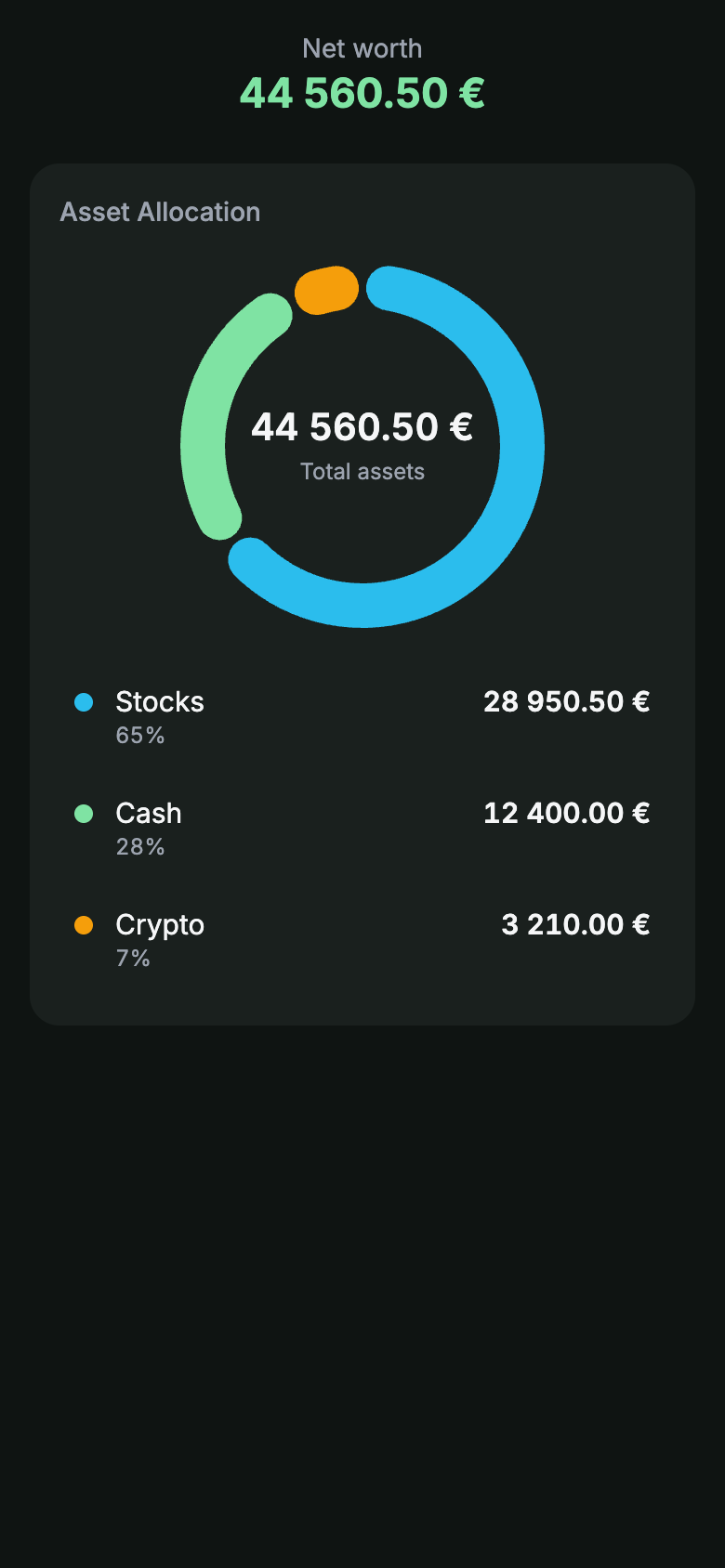
Net worth

All your money and investments in one place.

Cash, stocks, crypto and what you owe in one number, with stocks and crypto priced in real time.

  1. 1Add what you hold: cash, stocks, crypto and what you owe.
  2. 2Prices update in real time, so your stocks and crypto move with the market.
  3. 3Your total net worth and its allocation are always current, with nothing to type.
Yavo net worth screen listing cash, stocks and crypto with a total

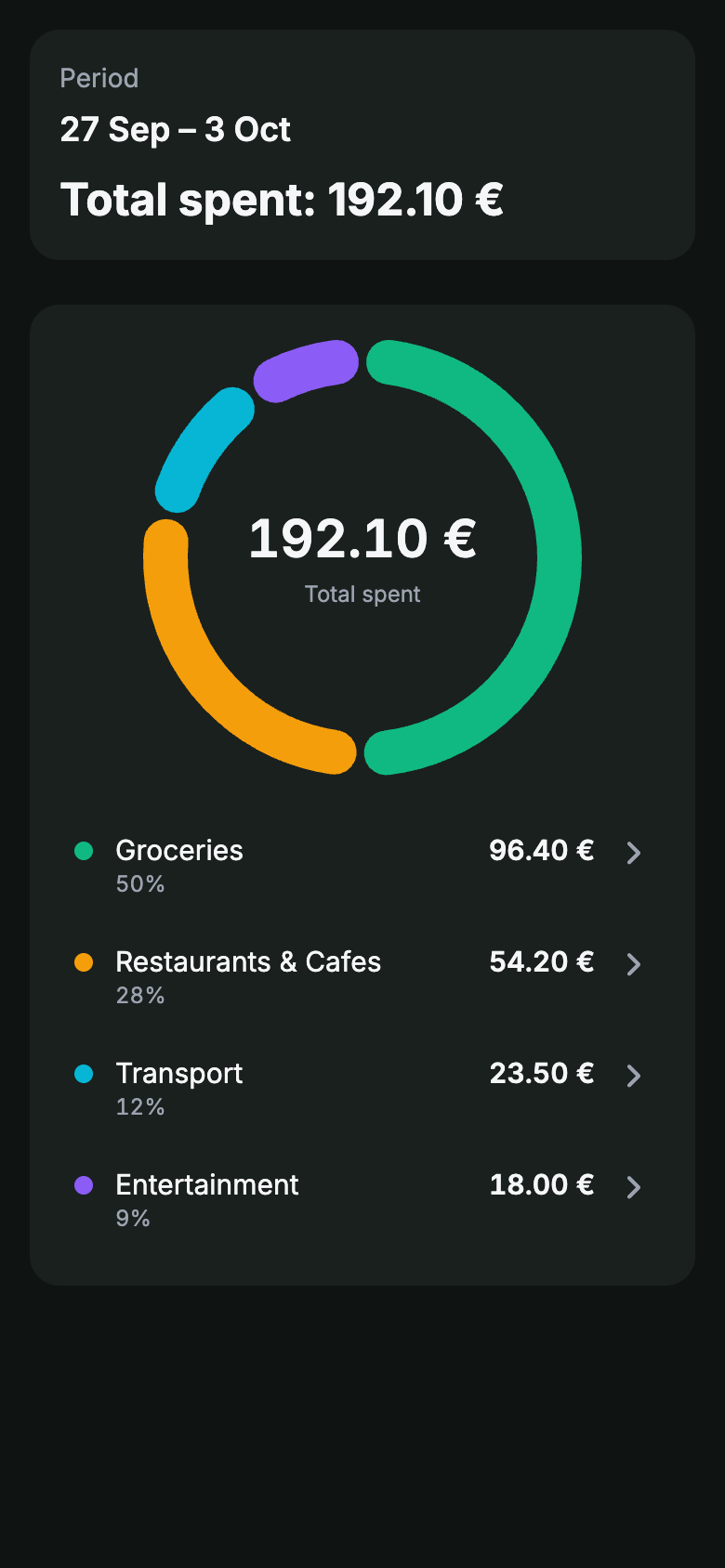
Reports

Where the money went, in plain words.

A chart by category for the week, month or year, and a written report that says where the money went and what changed.

  1. 1Switch between week, month and year to see spending by category.
  2. 2Read the written report: where the money went and what changed since last time.
  3. 3Weekly and monthly reports appear on their own, as cards in the app.
Yavo weekly report with total spent and a donut chart by category

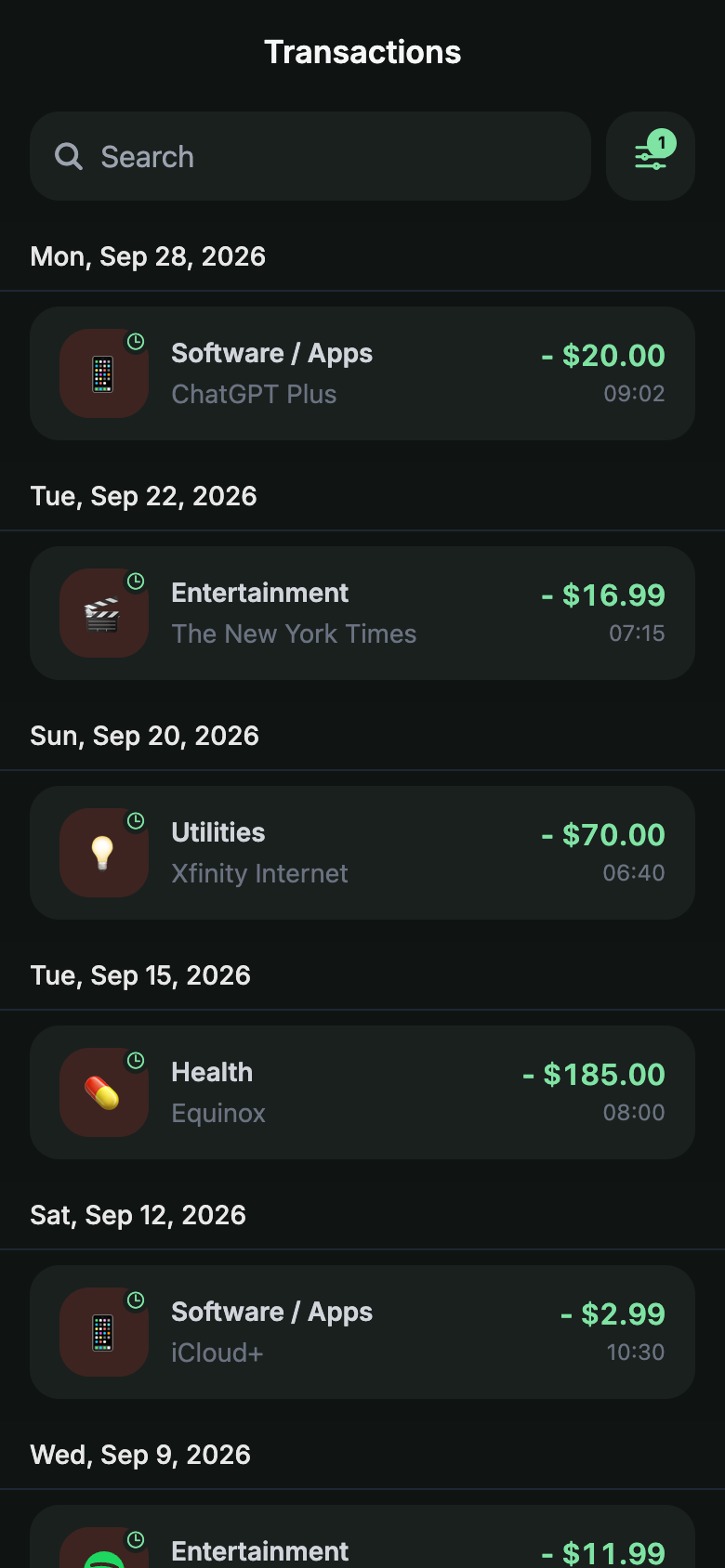
Subscriptions

Subscriptions stop creeping up on you.

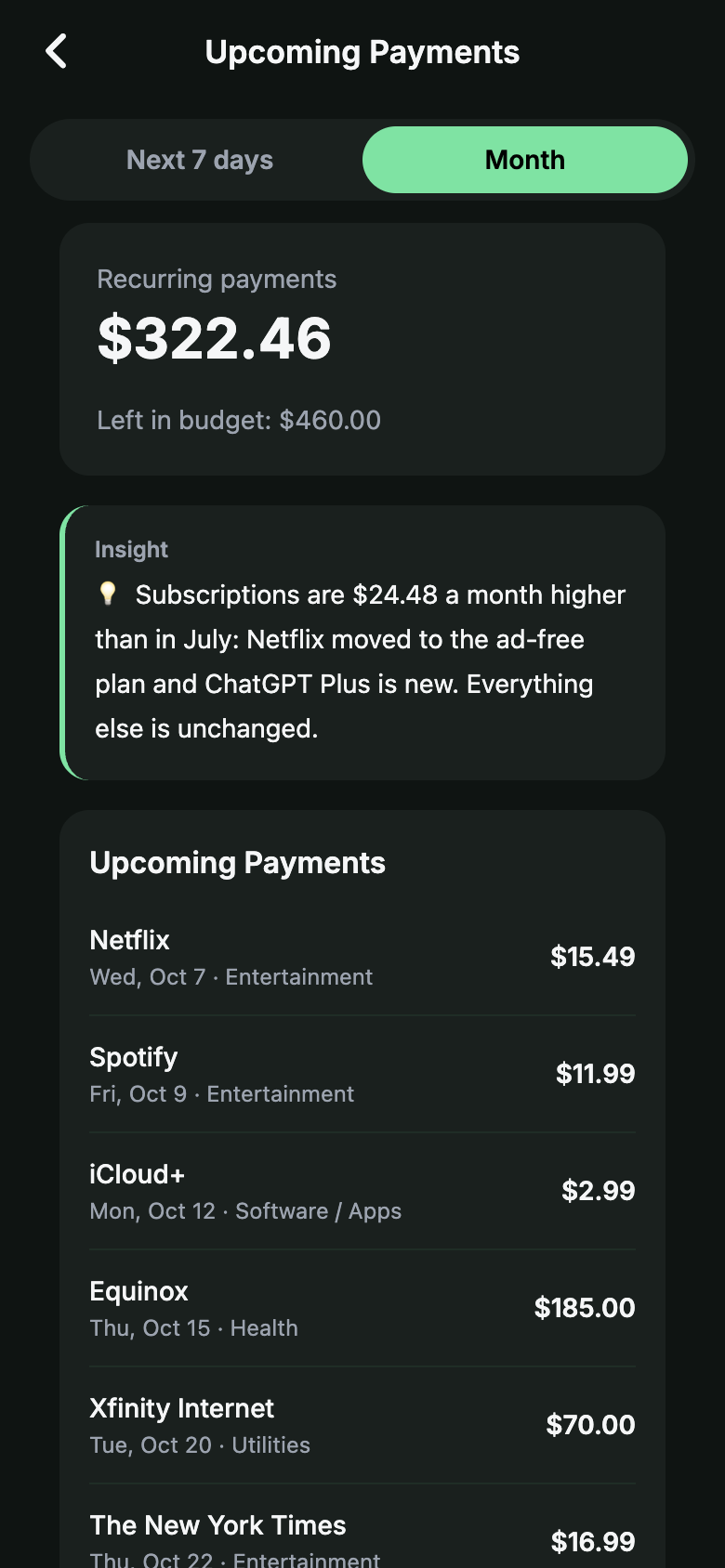
Mark a charge as recurring once. From then on one tap shows every subscription, and Upcoming payments shows what is due next, so you decide what stays.

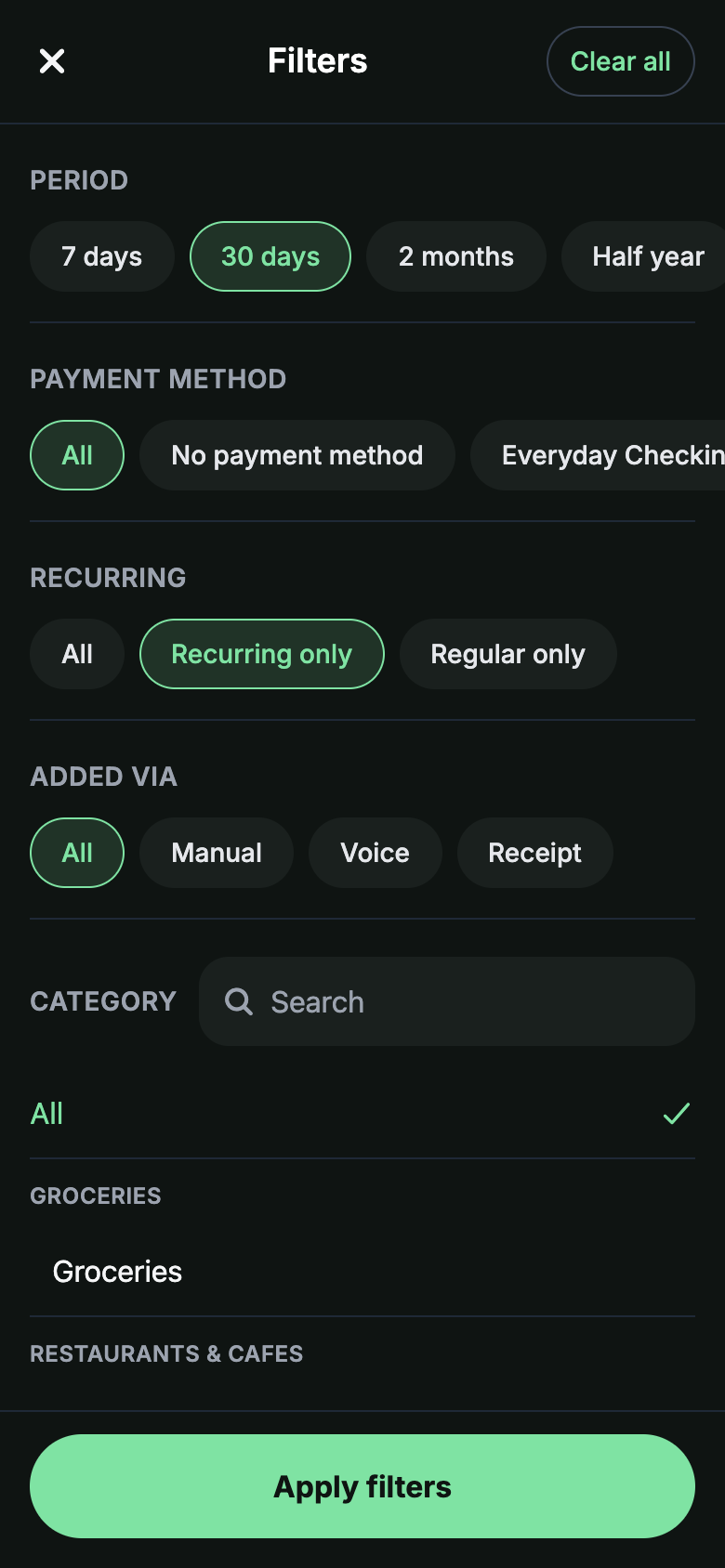
  1. 1Open Transactions and tap the Recurring only chip in the filters.
  2. 2You see every recurring charge with its amount and date, and nothing else.
  3. 3Upcoming payments shows what is due next and what this month's recurring payments add up to.
Subscriptions in detail
Yavo Transactions screen with the Recurring only filter applied: the seven recurring charges of the last 30 days
Yavo Upcoming payments screen for October: seven recurring payments and their total
Yavo transactions filter page with the Recurring only chip switched on

The monthly close

Nothing is lost when the month ends.

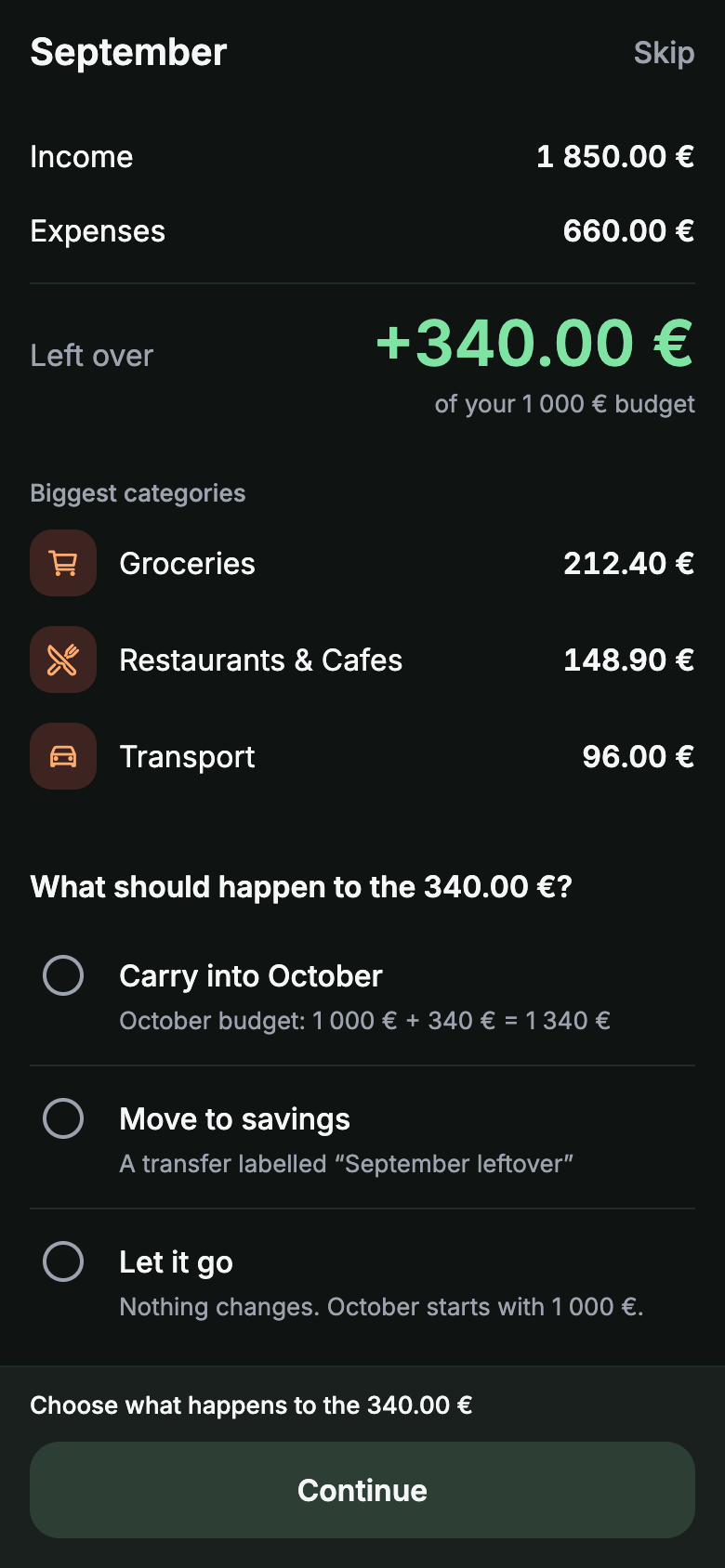
Instead of a reset on the 1st, Yavo walks you through a short close, so what is left goes somewhere on purpose.

  1. 1See what is left over once the month is done.
  2. 2Carry it into the next month, or move it to a savings goal.
  3. 3Review the limits Yavo suggests for the month ahead and adjust them.
The monthly close in detail
Yavo monthly close for September with the leftover amount

More than one currency

Pay in any currency. The budget still adds up.

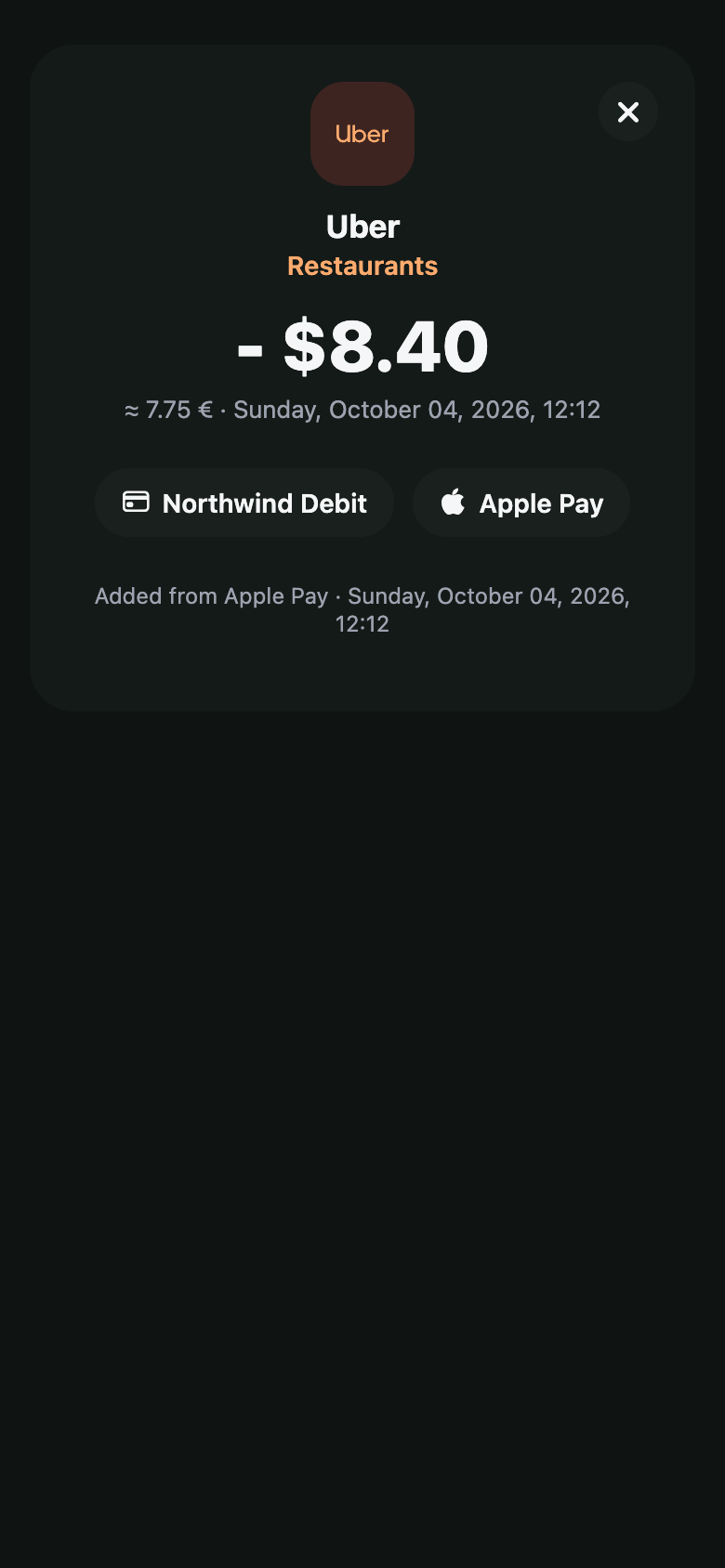
Travel, live abroad or get paid in another currency: each expense keeps its original amount and counts in your home currency.

  1. 1Pay in any currency. The expense keeps its original amount.
  2. 2Yavo converts it into your home currency for the budget, and both amounts stay on the expense.
Yavo expense detail for an Uber payment of 8.40 US dollars, with the euro amount beside it

Your bank login stays with you.

Most budget apps log in to your bank for you. Yavo does not, on purpose, and still fills itself.

Privacy and security in detail
  • Nothing to connect, renew or revoke

    Yavo never asks for your online banking password. There is no bank connection, so nothing stands between you and your bank.

  • You choose what comes in

    Apple Pay taps, the statements you send, the receipts you photograph. Nothing else is read.

  • Your data leaves when you do

    Delete your account in the app and your transactions, receipts and reports are deleted with it.

Compared with the apps you have probably tried

Prices and trials as published on each app's pricing page, checked on 5 October 2026.

YavoYNABMonarchCopilot
Works without a bank loginYesManual entry onlyManual entry onlyManual entry only
Automatic capture without a bank loginApple Pay, statements by emailNoNoNo
Free trial14 days yearly, 7 days monthly34 days7 days1 month
Yearly price$39.99$109$99.99$95
Android appYesYesYesNo

YNAB and Copilot prices from ynab.com/pricing and copilot.money/pricing. Monarch price from third-party coverage, to confirm against monarch.com. In YNAB, Monarch and Copilot, automatic import means linking a bank account; each also allows manual entry.

One plan. Try it free first.

Everything in Yavo, monthly or yearly, with a free trial first. If it is not for you, cancel in your Apple Account or Google Play settings before the trial ends and nothing is charged.

See pricing
$39.99per year

About $3.33 a month, 44% less than paying monthly.

14 days free

Promo code

30% off your first year with the code YAVO30: $27.99 instead of $39.99. Redeem it in the app.

What is included

  • Apple Pay capture in stores (iPhone)
  • Statements by email, unlimited
  • Receipt photos and voice
  • Budgets, limits and the monthly close
  • Goals, net worth and more than one currency
  • Recurring and upcoming payments, written reports

Questions people ask before downloading

What's new

  • Apple Pay in stores: a one-time Shortcuts automation logs each in-store payment as you pay.
  • Statement import by email: send a CSV, XLSX or PDF statement to your personal Yavo import address.
  • Imported transactions land in your budget and category limits.
Release notes on the App Store

Nothing to type.Nothing to connect.

Apple Pay taps in stores, statements by email, receipt photos and voice, all counting against a budget you can actually keep.

Free to try. Cancel anytime.