Forward the receipt. Skip the typing.
Online orders, e-receipts and card alerts land in your inbox. Forward them to your Yavo address, or set up auto-forward, and each one becomes a draft expense. No bank login.
iPhone and Android.
Free to start. Premium removes the limits.
How it works
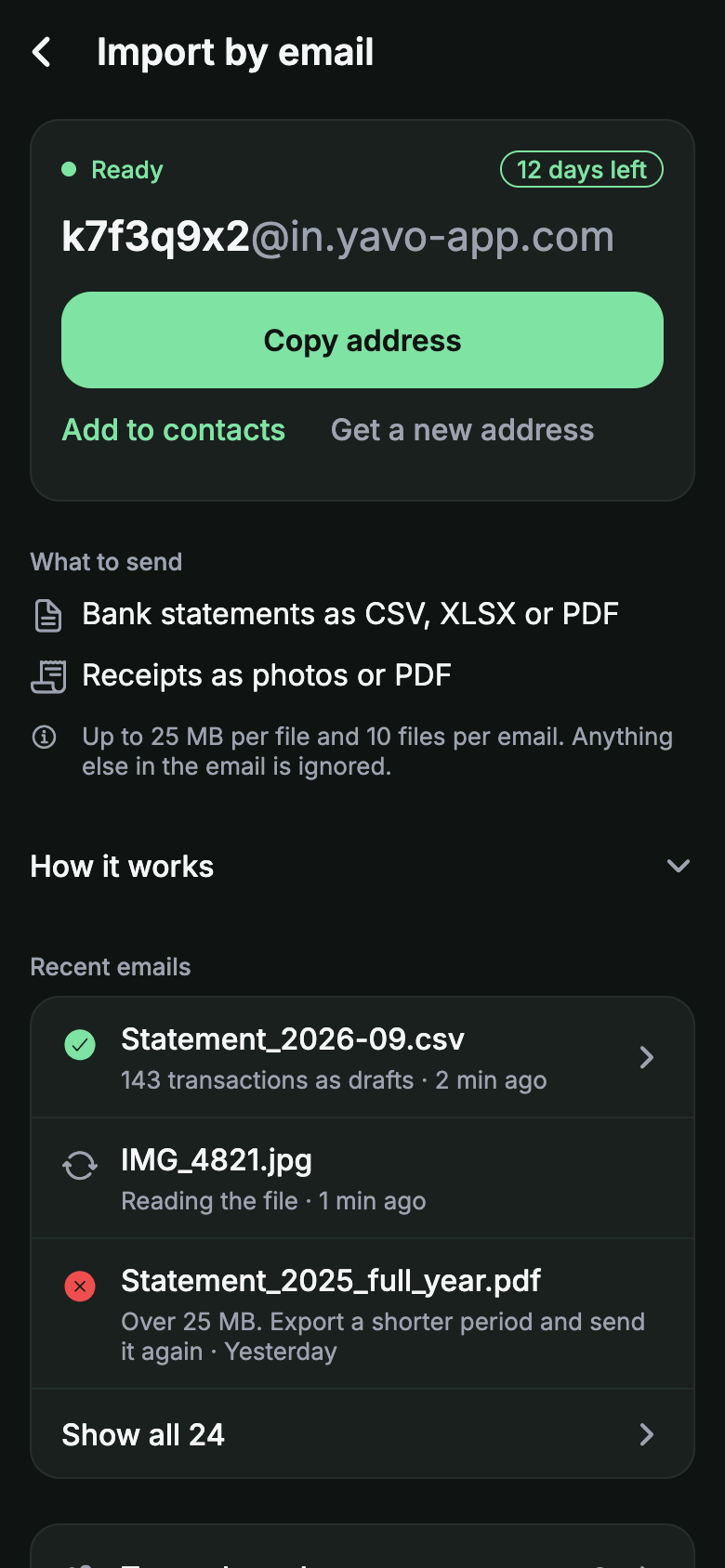
Find your Yavo import address
In the app, under Settings > Import by email. Every account has its own address. Copy it, or add it to your contacts so forwarding takes two taps.
Forward the email, or set a rule
Forward a receipt or an order confirmation by hand, or tell your mail app to forward receipts and card alerts for you. Attached PDF receipts, statements and receipt photos work as before.
Drafts arrive in the app
Yavo reads the email and creates a draft with the merchant, amount, currency and date, a category suggestion, and the items in the description. Review it in the app if anything needs a change.
What Yavo reads
- E-receipts and order confirmations from stores and services such as Amazon, Uber, DoorDash and Apple.
- Card and bank purchase alerts.
- Refunds. They come in as income.
- Up to 10 transactions from one email, such as an order split into several parts.
- The text of the email when it has no receipt file. If a PDF or photo is attached, Yavo reads that file instead.
What Yavo ignores
- Newsletters and marketing emails, even when they show prices.
- Shipping updates that carry no price.
- Payment reminders and due notices.
- Security alerts and declined payments.
- Nothing is added for these, and you are not notified, so an auto-forward does not buzz your phone.
Set up auto-forward
Ask your mail provider to forward receipts to your Yavo address. Use a filter or rule, so only receipts and card alerts go and not your whole inbox. Menus may differ; see your provider's help page.
Gmail
- 1. On a computer, open Gmail and go to Settings > See all settings > Forwarding and POP/IMAP. Google describes these steps for a computer only.
- 2. Click Add a forwarding address and enter your Yavo import address.
- 3. Gmail sends a confirmation message to that address, and forwarding stays off until the address is confirmed.
- 4. Yavo emails you Google's confirmation code with a Confirm button, and sends a push notification too. Tap Confirm.
- 5. Once it is confirmed, do not turn on Forward a copy of incoming mail, because that sends everything. Create a filter instead: Show search options, enter the sender or words such as receipt, click Create filter, tick Forward it and choose your Yavo address.
- 6. Forwarding a single email by hand with Forward needs no confirmation.
Outlook
- 1. In Outlook.com, the new Outlook or Outlook on the web, open Settings > Mail > Rules and click Add rule.
- 2. Name the rule and choose a condition that matches only receipts and card alerts, such as the sender.
- 3. Add the action Redirect to and enter your Yavo import address. Microsoft says redirected messages appear to come from the original sender, while Forward to makes them appear to come from you.
- 4. Save the rule. To send everything instead, use Settings > Mail > Forwarding, where Microsoft may ask you to turn on two-step verification first.
iCloud Mail
- 1. Go to icloud.com/mail and sign in. Open Settings from the button above the Mailboxes list, then choose Settings.
- 2. Choose Mail Forwarding in the sidebar.
- 3. Select Forward my email to and enter your Yavo import address. This forwards all of your mail.
- 4. To forward only receipts, set up a rule instead. Apple's page covers rules too, and each rule takes one forwarding address.
Who can send to your address
- Email from your own account address is trusted right away.
- The first email from any other sender waits for you in the app. Choose approve once, always, or block.
- Depending on your mail provider and rule, forwarded mail shows the original store or bank as the sender, or your own mail address. In the first case each new store or bank asks once; in the second you approve your address once.
- Mail that fails sender verification is dropped.
Privacy
- Yavo never connects to your mailbox. It only sees the emails you, or your rules, send to your import address.
- The text of an email is read once to find the transactions, then deleted.
- No bank login, ever.
- Keep it narrow: a filter that forwards receipts and card alerts, not your whole inbox.
Honest limits
- Yavo reads the email, not the pages it links to. A receipt that is only a View your receipt button is not read; send the PDF or a screenshot instead.
- Drafts are read from free text, so the merchant, amount or category can be wrong. Check each draft.
- Yavo only knows what reaches it. A purchase that sends no email is not tracked, and this is not live bank sync.
- Yavo catches likely duplicates, such as a card alert and the same purchase on a later statement, but it can miss one.
- Work and school accounts may block forwarding to outside addresses. Ask your administrator.
Questions
Where do I find my Yavo email address? In the app, under Settings > Import by email. Every account has its own address. Copy it, or add it to your contacts so forwarding takes two taps.
Can I automatically track expenses from email? Yes. Set a filter or rule in Gmail, Outlook or iCloud Mail that forwards receipts and card alerts to your Yavo address, and each one arrives in the app as a draft expense. Yavo does not connect to your inbox; it only sees what you forward.
Does Yavo read my whole inbox? No. Yavo has no access to your mailbox. It reads only the emails sent to your import address, and the text of each one is deleted after it has been read.
Which emails does Yavo ignore? Newsletters, marketing, shipping updates without a price, payment reminders, security alerts and declined payments. Nothing is added for them and you are not notified.
Is it safe? Can anyone email my address? Mail from your own account email is accepted. The first email from any other sender waits for your decision in the app: approve once, always, or block. Mail that fails sender verification is dropped.
What if my store only emails a link to the receipt? Yavo reads the email, not the page behind a link. Download the receipt as a PDF, or take a screenshot, and send that file to your Yavo address.
Do I need to link my bank? No. Yavo never asks for your online banking login. The emails you forward and the statements you send are the only things it reads.
Free to start. Premium removes the limits.
Nothing to type. Nothing to connect.
Apple Pay taps in stores, statements by email, receipt photos and voice, all counting against a budget you can actually keep.